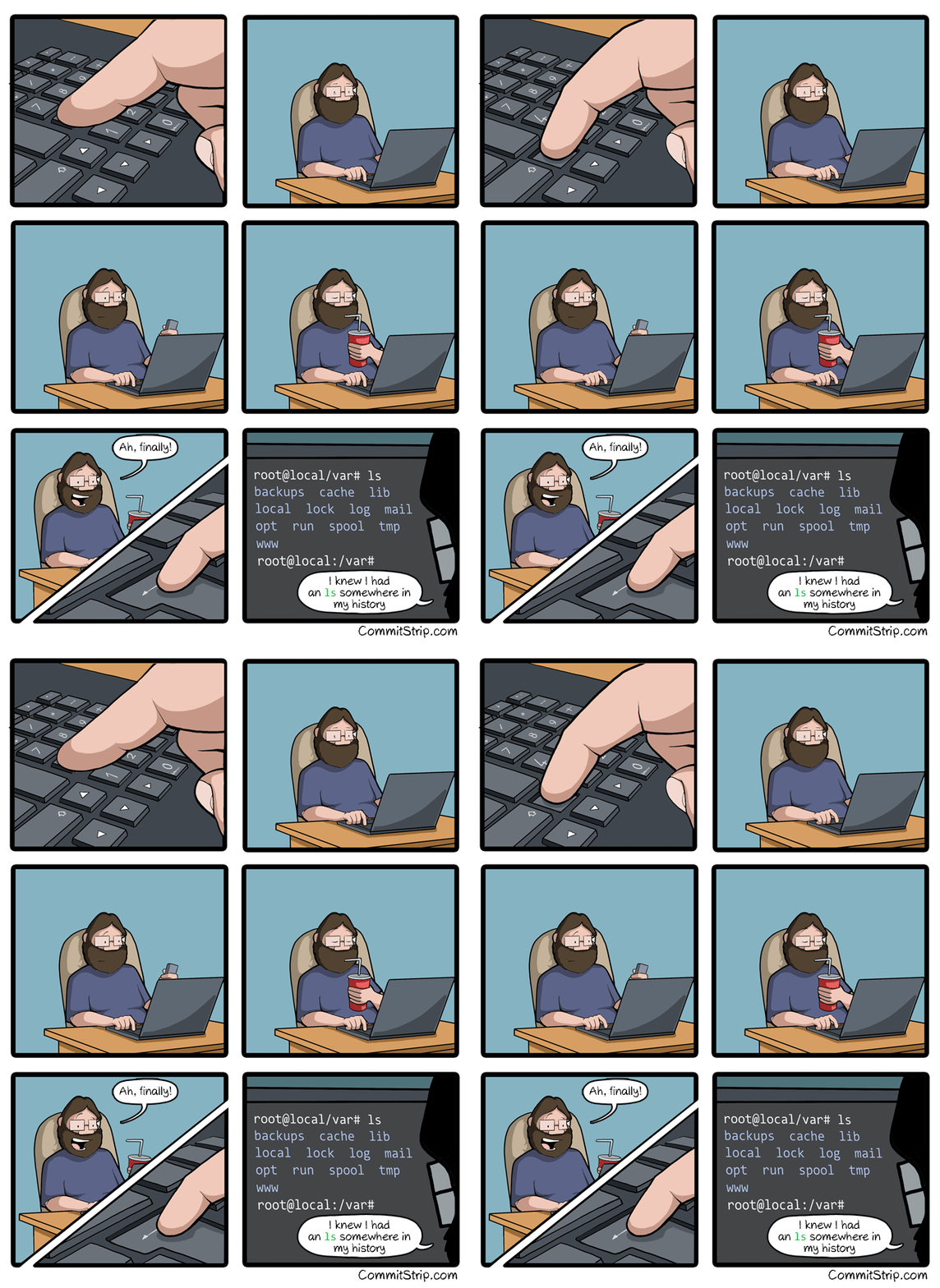
Ctrl+R
What the fuck!? How am I only learning this now, after years of linux as daily driver?!
Shit is usually a pain in the ass. The challenge is divining how much of a pain in the ass something has to be that someone else might have made a solution for it.
I didn’t know you could ctrl+shift+c to copy in the terminal until a month ago when my linux n00b wife said "there has to be a better way to do this. I’ve been right clicking to copy for 10 years.
most DE’s have a thing where you can paste highlighted text using the middle mouse button
It’s also independent from the Clipboard so you can do it while keeping your clipboard
Middle mouse button?!
Most mouse wheels can be clicked in place of the middle button, which has been removed from most modern computer mouses.
It’s also known as mouse 3 if you need to find it on your mouse or want to bind it to something else.
I think that’s just an x11 thing that might have been carried over to Wayland or at least works on Hyprland.
I believe plasma also has it
And ctrl + shift + v to paste, just in case
If that doesn’t work, Shift + Insert.
you can also just use ctrl + insert for copy and shift + insert for paste.
Ctrl+c to copy, Ctrl+v to paste, Ctrl+z to undo last change (chain it multiple times to reverse time) hopes this helps, ctrl+tab also changes applications on macos and Linux to my knowledge. If you know anymore let’s put them together
You’re getting downvotes because Ctrl+C doesn’t work in the terminal. That sends the kill command to the currently running application. You need the shift to tell the terminal program that you’re trying to copy.
I use cmd+c cmd+v in my terminal all they time, I do get ctlr+c is the shutdown command. I use a it frequently. I honestly had no clue I was being down voted but I don’t care
I don’t have a command key. I don’t use a mac.
Congratulations! I remember where I was when I first learned it (in a noisy server room at the back of a machine shop).
Now pair it with FZF for fuzzy finding – it’s surprisingly easy to set up, just following any guide. It’s insanely useful. I find myself even doing things like typing:
$ xinput --disable $(xinput --list | grep -i touchpad | grep 'id=[0-9]\+' -o | cut -d= -f2) # Disable synaptic touchpad trackpad pointercommands with these like comments on the ends as sort of “tags” so I can ctrl+r search for them later. Yes, I know I could just use a named function, but this is like the step just before that–before I know if I’ll be issuing the same command all the time, or just for the next couple weeks. (This one was from when I was resting my notebook on my laptop.)
I like this; I have a lot of commands that I don’t use often enough to justify an alias, but still need to rerun all the time. thanks!
Just checking, because I learnt to type before I worked this out, and because surely someone reading doesn’t know: press tab. Bash will fill in file names from your current directory.
E.g. say you have files fred1file, fred2file, jim.
Type f then press tab, it will fill to “fred”. Then press 2 and press tab again and it will fill the full “fred2file”.
Have a play, it works in heaps of situations.
Yeah already use this all the time, had to set it up on arch to work with sudo tho.
Bash will also do autocomplete for cli programs that have autocomplete functionality. Try typing:
git r<tab><tab>you’ll see options for all the git commands that start with r. Often cli commands will have autocompletion for long (double dash) options.
If you want to see all the commands that have auto complete available, look in:
/usr/share/bash-completion/completions/
There’s a few other locations they can live, notably:
/etc/bash_completion.d/ ~/.bash_completion ~/.local/share/bash-completion/completions/
I don’t know if there are more or if there is any variation per distro.
You can also write your own bash completions. They can get pretty smart and context sensitive.
Pretty good beginning tutorial:
https://iridakos.com/programming/2018/03/01/bash-programmable-completion-tutorial
edit - I should’ve mentioned that this isn’t native to bash, it requires installation of bash-completion. But bash-completion is installed by default in many distros.
As usual, that’s documented (we can RTFM).
Before trying ctrl-s, you may want to disable software flow control: run
stty -ixon& add it to your initialization files. Otherwise, you’ll pause terminal output. ctrl-q resumes terminal output.sttyreveals terminal special characters$ stty -a ⁝ intr = ^C; quit = ^\; erase = ^?; kill = ^U; eof = ^D; eol = <undef>; eol2 = <undef>; swtch = <undef>; start = ^Q; stop = ^S; susp = ^Z; rprnt = ^R; werase = ^W; lnext = ^V; discard = ^O; … ⁝These special characters/keys often perform special functions. To illustrate
- ctrl-d on empty input typically exits/logs out of interactive terminal applications (including shells)
- ctrl-u discards input (useful for inputs like password prompts that don’t echo input back)
- ctrl-v inputs next character literally (such as tab)
Same.
Use mcfly and it will be even better.
https://atuin.sh/ Does all that and a lot more, like showing if the command succeeded and which directory it was run in
This but with FZF and
agEven quicker with zsh or atuin: write the first few letters then arrow up to cycle through all matches
Even quicker with fish: Write the first few letters then it auto-suggests the last-run command matching that prefix (and then you can still arrow up to cycle through all matches).
(There is also a zsh plugin for that, called zsh-autosuggestions.)
A lot of stuff assumes Bash, so occasionally when the syntax differs its slightly annoying; sometimes you have to modify a few lines of a file or something (or run it as in Bash manually). Fish is so nice though. It really should replace Bash for almost everyone. If you really need Bash you can still use it.
With script files, you can (and should regardless of Fish usage) put a shebang at the top, like
or. Then it will run with Bash as you’d expect.I also recommend not setting Fish as your system-wide default shell (since then a missing shebang will cause it to run in Fish), but rather just have your terminal emulator start
fishby default.And yeah, outside of scripting, if I notice a command requires Bash syntax (which you can often tell from Fish’s syntax highlighting turning red), then I just run
bash, execute the Bash command in there and thenexitback out of there.Having said all that, I’m not trying to take away from your point. If I wasn’t just joking around, I would caveat a Fish recommendation just as much.
Yeah, it’s just some scripts that come with programs sometimes not including that is the issue. Like I said, it isn’t a big issue, just occasionally requires small edits if you try to run the script in Fish, or, like you said, running them with Bash.
Fish shell has this feature too. Love it.
I main ZSH and I’ve been CTRL+R’ing for years damn here I am a fool
Glad to be of service
I’m not going to say how long I used linux before learning this. It isn’t “this many days old”, but it may as well be.
I have 7 headless linux boxes running.
Hey! I’ve seen you before! You’re the unhinged jackass noticer!
…i looked in your comment history for too long to figure out why though. https://lemmy.world/comment/18001123
Wait till you learn about
!?.^r is superior, though.
I like to imagine someone added it in for their own personal use and told nobody because surely they are the only one.
It was publicized as part of
readline, I think.…in like 1989.
This is what I love about Linux - always learning new things!
I’m shocked how far I had to scroll down before it was mentioned, I was getting scared I would have to say it lol
Ctrl r
Almost, ctrl+R, ⬆️⬆️⬆️⬆️⬆️⬆️⬆️
The worst is when you remember doing something before, but don’t remember enough details to be able to effectively search for it.
Although, even then, I’m not going to just mindlessly hit “up”. Last time it happened I fed my command history through grep and removed all the things that I knew the command wasn’t. Just removing “ls” and “cd” from your history cuts the number of commands down by 80% or something.
Check out the fzf shell bindings. Reverse history search with fuzzy matching is one of the features.
That doesn’t help when you remember what effect the command had but nothing about what the command itself looked like.
I used to be like this but people seriously. CTRL+R
Do it. Don’t make this one of those things you’ve heard about and just never got around to trying. Open your terminal right now and CTRL+R and type any part of the command you did before. If the command you want is not showing first just hit CTRL+R again to go to the next one back.
DO IT.
Edit: I did learn from this thread today though that ZSH has it set to where you can just type part of what you’re looking for then hit up to do the same thing. Neat!
Holy shit. I just tried it.
ctrl+ris a revelation! How the fuck did I not know about this?WHAT THE FUCJ IS THIS SORCERY BRO I’VE BEEN USING LINUX FOR AGES AND NEVER KNEW THIS BROOOOOOOOOO
You can empower Ctrl+r event more by using fzf. After I started using it, I can’t imagine going back to without it.
If you want to level up ctrl-r, upgrade to Atuin: https://atuin.sh/
Edit: I did learn from this thread today though that ZSH has it set to where you can just type part of what you’re looking for then hit up to do the same thing. Neat!
Fish too, it’s fantastic.
CTRL+R + FZF is the goat. You just need to vaguely remember the command and you’ll find it.
This changed my life when I discovered it. Also using
agas alternative to ack.FZF Vim plugin is also gold!
I love this one but is the gif moving at 0.5 frames a second or is it just me

For me, it looks normal (about 8 frames a second, probably).
Normal for me. Thanks for pointing out it was a gif. I never realize they’re gifs because I have to “open in external” for them to actually move.
It works fine for me if I click on it but the embedded one is stuttering.
Ctrl + R and start typing the command, it’ll come up, press enter. Im just more lazy because I know there are still faster ways.
Oh my freaking god thank you
Note: if the above isn’t working, you may need to first set your shell to accept emacs commands:
set -o emacs
More like ⬆️⬆️⬆️⬆️⬆️⬆️ mother fucker ⬇️
⬆️⬆️⬆️⬆️⬆️⬆️⬆️⬆️⬆️⬆️
CTL+C
history
history | less
⬆️⬆️⬆️
Pg-up
…
Pg-up
…
q
! 2648
Fuck that hits so hard.
Care to explain to an uninitiated?
Every time you hit the up arrow, it shows the previous command you used in the terminal.
So hitting the arrow once gives your last used, hitting it twice gives your second to last command, and so on.
Yup and that is me. I could just history grep the command I want but I SWEAR it was just 2 commands ago, or 15 up arrows. lol.
Ohhh! I can absolutely relate to this as well! Using a zmud client to play games on. which is probably not much different, looking, than a terminal anyways
Multi user dungeon? What do you play?
history | grep thethingyou'relookingforBlasphemy
deleted by creator
history | grep then !cmd_number
zsh-history-substring-search
I lazily type part of the thing I want like “sys” and then ctrl+⬆️/⬇️ and
sudo systemctl start libvirtdetc. appear like magic.!ssh
run the last command that started with ssh
I… Well… Thank you !
It’s as amazing as it is dangerous :) use with care!
I see everyone posting about Ctrl+R, here’s a couple more useful CLI shortcuts you might enjoy:
cd - (change directory to $OLDPWD usually the previous directory)
git checkout - (similarly checkout the previous branch)
Ctrl+A (return caret to beginning of command, great when you forgot a positional argument and you were almost done typing the command)
Ctrl+E (similar to Ctrl+A but move to the end of the command)
Ctrl+A, Ctrl+E
Many more basic Emacs keybindings work, actually! Including C-f, C-b, C-p and C-n (if you prefer them over arrow keys) as well as M-f and M-b to move by words, C-k, M-d and C-y for killing/yanking (but not M-w) and C-SPC, C-w, C-x C-x for region manipulation (tested in Bash and ZSH)
Ctrl+L to clear the terminal screen, instead of typing clear
Not super into that since I’ve found all it does (at least in zsh) is print a bunch of blank lines
Also Ctrl-u to clear the command line.
You’re in vim, you forgot to sudo, the file is read only and you have loads of changed you don’t feel like saving off to /tmp and playing the copy file shell game.
[esc]:w !sudo tee %
it shoves the current buffer through tee (termina adapter) with sudo privs vim will warn you that the file changed, just [esc]:q! and don’t let it save, you already saved it.
I don’t see how this is relevant but thanks for the tip.
I offered one for !ssh, then noticed people were giving other obscure tips so i offered this one.
What, and type ‘ls’ again?
Ah crap how did I set my battery charge interval again?
history | grep battery
history | grep bios
history | grep sudo smbios
Ah! There you are you little shit!
edit to add: Actually, I think the last time I did this I remembered some numbers I set it to before. So it worked well with something like “history | grep 75” even though there were a bunch of results.
Is there a good way to do this when you use a lot of terminal tabs and aren’t sure which tab you used for the command you’re looking for?
if you close all the terminal tabs and do ctrl+r on a new one it will search all of the ones you closed